
Styler Browser
Manage preset assets and apply them to a selection, scene, or project
Overview
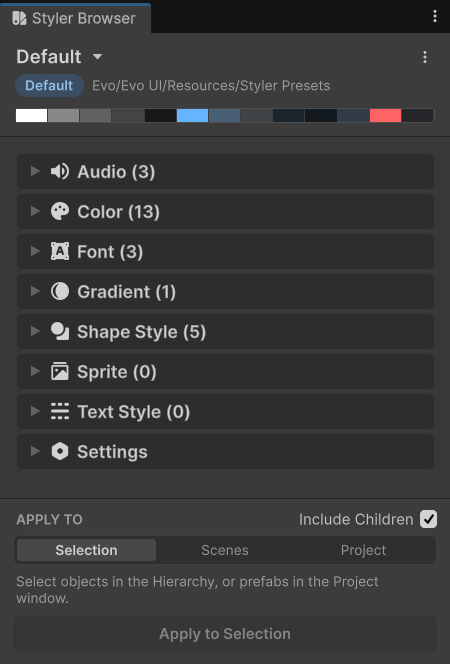
Styler Browser brings preset selection, editing, application, and ID migration into one editor window. Open it from Tools -> Evo UI -> Styler Browser.
Usage
Choose a preset from the Browser’s list.
Edit its values in the embedded Inspector. You can also open the asset in Unity’s Inspector, duplicate it, or rename it.
Select the UI objects that should use it.
Apply to the selected objects, or use the selection dropdown to include their children.
For broader changes, use Apply Preset and choose a scene or project scope.
Application Scopes
| Scope | What changes |
|---|---|
| Selection | Supported styling components on the selected objects. |
| Selection and children | Includes supported components on inactive children. |
| Scene | Supported components in loaded scenes. Prefab instances receive scene overrides; scenes remain unsaved. |
| Project | Prefab and scene assets under Assets. Prefabs and closed scenes are saved; open scenes remain unsaved. Existing preset assignments and instance overrides can be replaced. |
Review the chosen scope before a project-wide operation. It writes source assets and cannot be fully undone with Unity Undo. Save modified open scenes after reviewing the result.
ID Migrator
Use ID Migrator when renaming an ID that is already used by components. Editing the ID in the preset alone leaves those references pointing at the old name.
- Select the preset and open ID Migrator.
- Choose the item type, source ID, and target ID.
- Choose selected objects, loaded scenes, prefab assets, or the entire project.
- Review the scope description and validation message, then run the migration.
- Save any modified open scenes after checking the result.
If the target ID already exists, the tool can redirect references to that entry without replacing it. A prefab-only migration retains the source ID for scene users. If an operation stops partway through, inspect the progress message and Console because some assets may already have been saved.
Notes
Styler Browser is an editor tool; use Styler’s Public API for theme changes in a player build.