
Text Providers
Use TextMesh Pro or UniText for Evo UI text, input fields, and fonts
Overview
Evo UI routes text, input fields, and fonts through a text provider. TextMesh Pro is built in and selected by default. UniText is supported automatically when its package (media.lightside.unitext) is installed.
The selected provider is used by Evo UI components, Styler, and the Create menu. Text references on Evo UI components accept a text component of any supported provider, so the same component works with either engine.
Usage
Install the provider's package. UniText is detected through its package; adding a scripting symbol alone does not enable it.
Open Project Settings -> Evo UI and select a provider under Text Provider.
Existing text keeps its provider until you convert it. Under Convert Existing Text, choose what to convert and select Convert, now or later.
Assign a font for the provider on each Font entry of your Styler Presets.
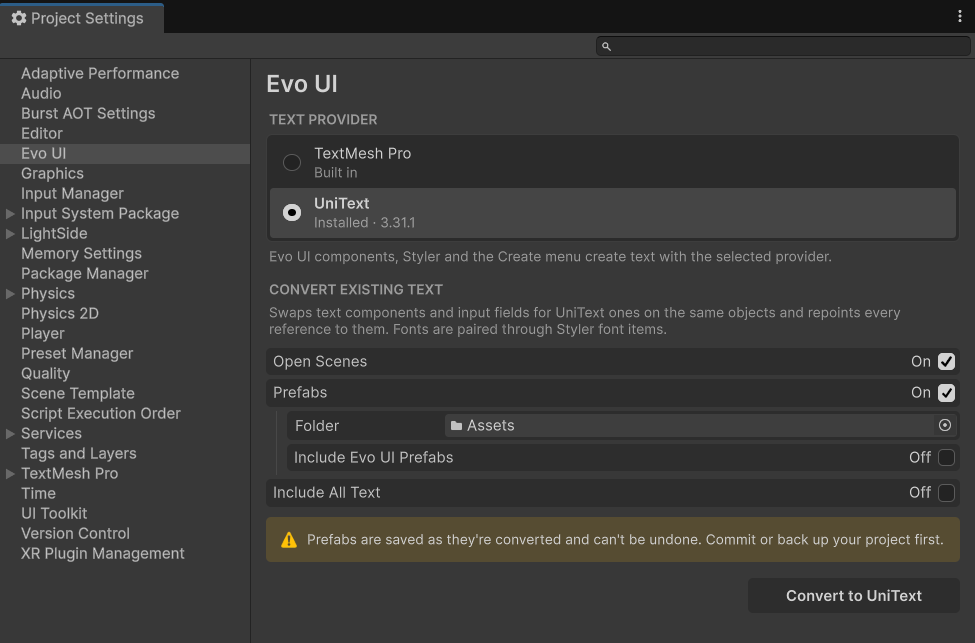
The selection is saved to ProjectSettings/Evo/EvoUISettings.json. Commit it so your team uses the same provider. Components that generate text, such as charts and List View, save the provider with the scene or prefab, so builds create the same text as the editor.
If the selected provider isn't installed, for example on a machine without its package, the page marks it and Evo UI uses TextMesh Pro until it is.
Converting Existing Text
Convert Existing Text replaces text components and input fields with the selected provider's components on the same GameObjects, then repoints every reference to them. The result appears below the Convert button.
| Option | Description |
|---|---|
| Open Scenes | Converts text in every loaded scene and the open prefab stage. |
| Prefabs | Converts prefab assets inside Folder. |
| Include Evo UI Prefabs | Also converts Evo UI's own prefabs. These are templates that package updates replace, and the Create menu already converts new objects. |
| Include All Text | Converts every text and input field, not only the ones referenced by Evo UI fields. |
- Fonts are paired through the Font entries of the Styler Presets in your project. Text that uses an entry's TextMesh Pro font receives the same entry's UniText font, and the other way around. Text without a paired font uses the provider's default font and is listed in the Console.
- Text that cannot follow is skipped and listed in the Console. This includes text required by a provider-specific component, such as Text Effects, and text kept in a script field that only accepts one provider's type, such as
TMP_Text. - Evo Localization Localized Objects are switched between their TMPText and UniText object types along with their text.
- Evo UI prefabs ship with TextMesh Pro. When another provider is selected, the Create menu converts each new object as it is created, so the package templates stay unchanged.
Fonts
Each Styler Font entry holds one font per provider: a TextMesh Pro font asset, plus a font for each other provider (a UniTextFontStack or UniTextFont for UniText). When more than one provider is installed, the entry shows a field for each. Components resolve the font that matches their text, so one Font ID works with every provider.
Other font fields, such as List View style fonts and custom font mappings, accept fonts of the active provider.
Provider Differences
- Text Effects and Smooth TMP Gradient require TextMesh Pro.
- Input Field Enhancer's Handle Shift Enter is TextMesh Pro only. For UniText fields, set the field's Submit Key behavior to Enter.
- Use Uniform Digit Width on Counter and Timer measures the widest digit and adds an
<mspace>tag for TextMesh Pro, which needs Rich Text enabled; Digit Width Scale adjusts that width. UniText uses the font's tabular figures instead. - Text Style auto-size width (WD%) and Line adjustments apply to TextMesh Pro only. Overflow maps Ellipsis and Truncate to UniText; other overflow modes have no UniText equivalent.
- UniText input fields are
UniTextEditablecomponents on the edited text object, while aTMP_InputFieldsits on a parent object of its text.
Scripting
Evo UI fields that reference text use provider-neutral types:
| Reference | Field type | Examples |
|---|---|---|
| Text component | Graphic | Button.textObject, Slider.valueText, StylerObject.targetText |
| Input field | MonoBehaviour | InputFieldEnhancer.source, Slider.valueInput, ColorPicker.hexInput |
| Font | Object | FontMapping.font, ListViewStyle.headerFont, ListViewStyle.rowFont |
Prefer component properties such as Button.Text or ModalWindow.Title when they exist. Otherwise, use TextProvider, or cast the reference to the provider's type (for example, TMP_Text) when you need an engine-specific API.
Mark your own fields with [TextComponent], [TextInput], or [TextFont] to get the same Inspector filtering and to include them in conversions.
TextProvider
Use TextProvider in the Evo.UI namespace. Shortcut methods do nothing, or return an empty value, for components that no installed provider supports.
| Name | Parameters | Description |
|---|---|---|
Active | None | Property. Provider selected in Project Settings. Returns TextBackend. |
Backends | None | Property. Registered providers, built-in ones first. Returns IReadOnlyList<TextBackend>. |
GetText() | Graphic text | Returns the text. Returns string. |
SetText() | Graphic text, string value | Sets the text. Overloads accept char[] buffer, int start, int length or a StringBuilder without allocating a string. |
UpdateText() | Graphic text, string value | Sets the text and reports whether it changed. Returns bool. |
GetFontSize() | Graphic text | Returns the font size. Returns float. |
SetFontSize() | Graphic text, float size | Sets the font size. |
GetValue() | MonoBehaviour input | Returns the input field's value. Returns string. |
SetValue() | MonoBehaviour input, string value, bool notify | Sets the value. Value-change listeners are only called when notify is true. |
GetTextComponent() | MonoBehaviour input | Returns the text the field edits. Returns Graphic. |
SetCharacterLimit() | MonoBehaviour input, int limit | Limits the value length; 0 removes the limit. |
IsFocused() | MonoBehaviour input | Reports whether the field is being edited. Returns bool. |
Find() | Graphic text | Returns the provider that owns the text, or null. Returns TextBackend. |
FindInput() | Object input | Returns the provider that owns the input field, or null. Returns TextBackend. |
Register() | TextBackend backend | Adds a custom provider. |
For settings without a shortcut, such as font, alignment, focus, or interactability, call the TextBackend returned by Find() or FindInput(). To receive input field events from any provider, bind a TextInputListener to the field.
Custom Providers
To support another text engine, derive from TextBackend and call TextProvider.Register() in both the editor and builds before Evo UI components use it. Its Id is saved in Project Settings and in components, so never change it after release.
Example
using UnityEngine;
using UnityEngine.UI;
using Evo.UI;

public class TextProviderExample : MonoBehaviour
{
    // Accepts a text component of any installed provider.
    [SerializeField, TextComponent] private Graphic statusText;
    [SerializeField] private InputFieldEnhancer nameField;

    private void Start()
    {
        TextProvider.SetText(statusText, "Ready");

        // Restore a saved name without invoking value-change listeners.
        TextProvider.SetValue(nameField.source, "Player", notify: false);
        Debug.Log($"Name: {TextProvider.GetValue(nameField.source)}");
    }
}