
List View
Structured rows and columns with reusable cells and CSV support
Overview
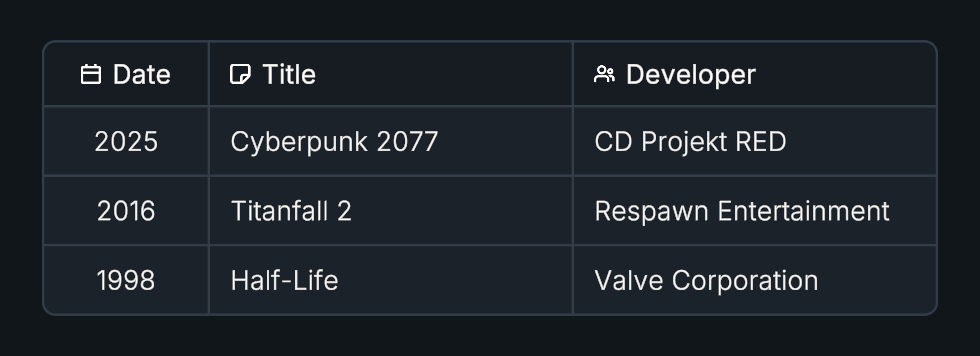
List View presents tabular data with text, icons, and custom cell content.
Usage
Create a List View and define its columns.
Add rows with values in the same order as the columns.
Choose custom styling or Styler mappings.
Pick a Scale Mode under Scroll View: Automatic fits the rows to the List View, Fixed keeps their height and scrolls.
Customization
Scroll View
Scale Mode sets where the rows get their height. The header keeps its Header Height in both modes.
Automatic shares the List View’s height between the rows, so they grow and shrink with it, and nothing scrolls. The List View never changes its own size, so anchors, layout groups, and code can size it freely.
Fixed keeps Row Height and scrolls the rows under a pinned header when they don’t fit.
Virtualize Rows, under Fixed, keeps cells only for the rows in view, plus one row above and one below. Rows that scroll out pass their cells to rows that scroll in, so long lists stay light. It’s off by default. In Edit Mode, the scene saves only the rows in view.
With Virtualize Rows on, custom GameObject cells reuse their instances across rows. Set per-row state on them from onRowShown.
In Fixed mode, columns that are wider than the List View scroll sideways, and the header follows the rows. A flexible column then uses its width as a Min Width: it still fills spare space, but never gets narrower.
Scrolling uses the Evo UI Scroll Rect, so Smooth Scroll, Inertia, and Movement Type behave the same way. An axis only scrolls while its rows or columns don’t fit, so a List View with nothing to scroll leaves the mouse wheel to a parent scroll view. With Auto Hide Scrollbars, each assigned scrollbar shows only while its axis can scroll.
Selecting a control inside a cell, for example with a gamepad, scrolls that cell into view.
Spacing
Column, row, and content spacing accept negative values to overlap neighbors. With Show Border on, a spacing of minus the Outline Width merges neighboring outlines into single lines.
Tips
- Each column can use a fixed or flexible width.
ListViewCellDatadescribes the cell type, label, icon, custom object, and background visibility.- Use
SetCellData()when changing more than text.
Notes
ImportFromCSV() and ExportToCSV() handle text-based table data. CSV does not preserve Unity object references such as sprites or custom prefabs.
Public API
Use ListView in the Evo.UI namespace.
Use RefreshCell() for a targeted update or Rebuild() after structural changes. Cell clicks are reported by onCellClicked.
With Virtualize Rows on, rows out of view have no cell objects. GetCellObject() and GetCellCustomInstance() return null for them, and SetCellValue() or RefreshCell() on them only updates the data, which shows when the row scrolls into view.
Properties
| Name | Type | Description |
|---|---|---|
RowCount | int | Current row count. |
ColumnCount | int | Current column count. |
ScrollRect | ScrollRect | The generated scroll rect. It’s disabled while there’s nothing to scroll. |
Fields
| Name | Type | Description |
|---|---|---|
columns | List<ListViewColumn> | ListViewColumn definitions. |
rows | List<ListViewRow> | ListViewRow data. |
style | ListViewStyle | Visual settings for the table. |
scaleMode | ListView.ScaleMode | Automatic shares the List View’s height between the rows. Fixed keeps Row Height and scrolls. Call Refresh() after changing it. |
virtualizeRows | bool | Keeps cells only for the rows in view in Fixed mode. Call Refresh() after changing it. |
Methods
| Name | Parameters | Description |
|---|---|---|
AddColumn() | ListViewColumn column | Adds a column definition. |
RemoveColumn() | int index | Removes a column by index. |
AddRow() | ListViewRow row | Adds a ListViewRow. |
AddRow() | params string[] values | Adds a row from its cell values. |
RemoveRow() | int index | Removes a row by index. |
ClearRows() | None | Removes all rows. |
SetCellValue() | int rowIndex, int columnIndex, string value | Changes a cell’s text. |
SetCellData() | int rowIndex, int columnIndex, ListViewCellData data | Changes a cell’s complete data. |
SetCellData() | int rowIndex, int columnIndex, string value, Sprite icon = null, GameObject customObject = null | Changes a cell’s complete data. |
GetCellValue() | int rowIndex, int columnIndex | Returns cell text. Returns string. |
TryGetCellData() | int rowIndex, int columnIndex, out ListViewCellData data | Safely retrieves typed cell data. Returns bool. |
GetCellObject() | int rowIndex, int columnIndex | Returns the generated cell object, or null for a row out of view while Virtualize Rows is on. Returns GameObject. |
GetCellCustomInstance() | int rowIndex, int columnIndex | Returns the custom content instance; a generic overload returns a component. Null for a row out of view while Virtualize Rows is on. Returns GameObject. |
GetCellCustomInstance<T>() | int rowIndex, int columnIndex | Returns the custom content instance; a generic overload returns a component. Null for a row out of view while Virtualize Rows is on. Returns T. where T : Component. |
RefreshCell() | int rowIndex, int columnIndex | Refreshes one cell. |
ScrollToRow() | int rowIndex, float alignment = 0, bool instant = false | Scrolls a row to an alignment in the viewport: 0 top, 0.5 center, 1 bottom. |
EnsureVisible() | int rowIndex, int columnIndex = -1, bool instant = false | Scrolls only as far as needed to show a cell. Row -1 is the header. |
Refresh() | None | Refreshes the table. |
Rebuild() | None | Rebuilds its structure. |
ImportFromCSV() | string csvText, bool hasHeaders = true, bool clearExisting = true | Imports text data with optional headers and clearing. |
ExportToCSV() | bool includeHeaders = true | Returns CSV text with optional headers. Returns string. |
Events
| Name | Type | Description |
|---|---|---|
onCellClicked | UnityEvent<int, int> | Invoked with row index, then column index. |
onRowShown | UnityEvent<int> | Invoked in Play Mode with a row index when that row gets cells it didn’t have: on first draw, for new rows, and with Virtualize Rows each time it scrolls into view. Use it to set per-row state on custom GameObject cells, whose instances are reused across rows. |
Example
using UnityEngine;
using Evo.UI;

public class ListViewExample : MonoBehaviour
{
    [SerializeField] private ListView target;

    private void Start()
    {
        target.ClearRows();
        // Configure two columns in the Inspector before adding these rows.
        target.AddRow("Player", "1200");
        target.AddRow("Guest", "950");
        target.onCellClicked.AddListener((row, column) =>
            Debug.Log(target.GetCellValue(row, column)));
    }
}