
Time Picker
Pick a time of day on iOS-style wheels with momentum and snapping
Overview
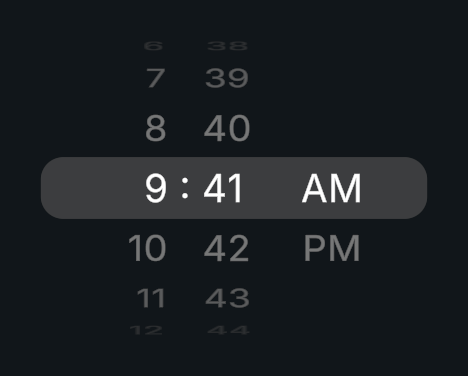
Time Picker selects a time of day on hour, minute, and AM/PM wheels. The wheels turn like a drum, keep spinning after a flick, and settle on a row. Hours and minutes loop endlessly.
Usage
Create a Time Picker from GameObject > Evo UI > Date and Time > Time Picker.
Choose the Initial Time: Current reads the device clock on start, and Custom uses the hour and minute you set.
Set the Hour Format and Minute Interval in Settings.
Listen to On Time Changed for a System.TimeSpan value.
Customization
Text Style
Each wheel draws all of its rows from one Item template. The other rows are hidden copies that are never saved, so editing the template restyles the whole wheel. To restyle the picker at once, press Style > Select Text Items on the Time Picker; it selects every template and the separator for editing together.
Text color and font come from the Styler Object’s Color ID and Font ID. Set size, spacing, and alignment on the text component.
Format and Labels
Hour Format can be 12-hour, 24-hour, or Auto, which follows the device’s regional format. The AM/PM wheel is hidden in the 24-hour format. In the 12-hour format, turning the hours past 11 and 12 also turns AM/PM, as on iOS.
Minute Interval can be any divisor of 60 up to 30 minutes. Times in between round down. The AM and PM labels can use Evo Localization when the integration is enabled.
Wheels
Row Height sets the row height of every wheel and the selection indicator. The height of a wheel sets how strongly its drum curves. On each Picker Wheel, Unselected Alpha sets how much the rows away from the center fade, and Deceleration Rate sets how far a flick spins.
Sound Effects in Effects plays a tick as rows pass the center while the user turns a wheel.
Notes
Wheels respond to dragging, flicking, the mouse wheel (one row per notch), clicking a row, and up and down navigation from a keyboard or gamepad. Touching a spinning wheel stops it. Sideways drags and scrolls pass to a parent scroll view.
On Time Changed is invoked once on start, when a wheel settles on a new time, and when a notifying SetTime() changes it. While a wheel is still turning, SelectedTime returns the previous value.
In Edit Mode, Current previews 9:41 so that opening a scene does not modify it.
Performance
Each wheel keeps only the rows it can show and reuses them while turning, so only rows entering the view change their text. Turning, landing, and ticking allocate no memory.
Public API
Use TimePicker in the Evo.UI namespace.
Hours range from 0 to 23 in every format. The wheels only change how they are shown.
Properties
| Name | Type | Description |
|---|---|---|
SelectedTime | TimeSpan | Selected time of day. Setting it animates the wheels and invokes events on change. |
Hour | int | Read-only selected hour, from 0 to 23. |
Minute | int | Read-only selected minute. |
Is24Hour | bool | Whether the picker uses the 24-hour format, including through Auto. |
Format | HourFormat | TwelveHour, TwentyFourHour, or Auto. |
Interval | MinuteInterval | Step between selectable minutes. |
RowHeight | float | Row height of the wheels and the selection indicator. |
Fields
| Name | Type | Description |
|---|---|---|
hourWheel | PickerWheel | Wheel showing the hours. |
minuteWheel | PickerWheel | Wheel showing the minutes. |
periodWheel | PickerWheel | AM/PM wheel, hidden in the 24-hour format. |
selectionIndicator | RectTransform | Optional highlight behind the selected row. |
soundEffects | bool | Plays a tick while the user turns a wheel. |
Methods
| Name | Parameters | Description |
|---|---|---|
SetTime() | int hour, int minute, bool animated = true, bool invokeEvents = true | Sets the time from an hour of 0 to 23 and a minute, which rounds down to the interval. |
SetTime() | TimeSpan time, bool animated = true, bool invokeEvents = true | Sets the time from a time of day. Days and seconds are ignored. |
SetTime() | DateTime dateTime, bool animated = true, bool invokeEvents = true | Sets the time from the time of day of a date. |
SetToCurrentTime() | bool animated = true, bool invokeEvents = true | Sets the device’s current time. |
SetPeriodLabels() | string am, string pm | Changes the AM and PM labels. |
Refresh() | None | Rebinds and redraws the wheels after replacing their references at runtime. |
Events
| Name | Type | Description |
|---|---|---|
onTimeChanged | UnityEvent<TimeSpan> | Invoked with the time of day when it changes. |
Picker Wheel
PickerWheel is the wheel used by Time Picker, and it works on its own for any list of options. Its labels come from Items in the Inspector, or from SetItems(). onValueChanged is a UnityEvent<int> invoked with the item index when the wheel settles on another item. Enable Loop to make the list endless. Picker Wheel has no tick sound of its own.
| Name | Type | Description |
|---|---|---|
SelectedIndex | int | Index of the selected item. Setting it animates the wheel and invokes events on change. |
ItemCount | int | Number of items shown. |
Items | IReadOnlyList<string> | Items shown, from SetItems() or the serialized list. |
IsMoving | bool | Whether the wheel is dragged, held, or still moving toward a row. |
Loop | bool | Continues from the last item to the first. |
ItemTemplate | RectTransform | Row copied for every other row. |
ItemHeight | float | Row height at the center of the wheel. |
| Name | Parameters | Description |
|---|---|---|
SetItems() | IReadOnlyList<string> newItems | Shows these items instead of the serialized list. Pass null to show the serialized list again. |
SetIndex() | int index, bool animated = true, bool invokeEvents = true | Selects an item. A looping wheel turns the shortest way. |
SelectNext() | None | Turns to the next item. |
SelectPrevious() | None | Turns to the previous item. |
Refresh() | None | Copies the item template again after changing it at runtime. |
Example
using UnityEngine;
using Evo.UI;

public class TimePickerExample : MonoBehaviour
{
    [SerializeField] private TimePicker target;

    private void Start()
    {
        target.Format = TimePicker.HourFormat.Auto;
        target.Interval = TimePicker.MinuteInterval.Five;
        target.SetTime(7, 30, false, false);
        target.onTimeChanged.AddListener(time => Debug.Log($"Alarm set for {time:hh\\:mm}"));
    }
}using UnityEngine;
using Evo.UI;
public class PickerWheelExample : MonoBehaviour
{
[SerializeField] private PickerWheel target;
private static readonly string[] Sizes = { "Small", "Medium", "Large" };
private void Start()
{
target.Loop = false;
target.SetItems(Sizes);
target.SetIndex(1, false, false);
target.onValueChanged.AddListener(index => Debug.Log($"Size: {Sizes[index]}"));
}
}