
Context Menu
Contextual actions with recursive submenus
Overview
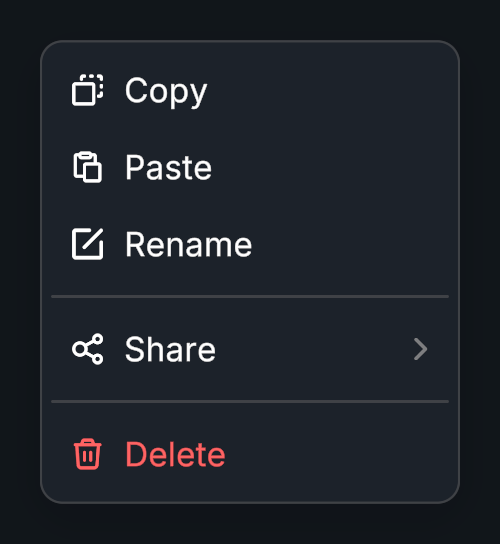
Context Menu opens a list of actions beside the pointer or a target. Submenus can contain further submenus, regular items, separators, and custom objects.
Usage
Add Context Menu to a UI or scene object. Under References -> Menu Preset, assign Evo UI/Prefabs/Overlays/Context Menu or your own preset prefab.
Populate Menu Items and their click callbacks.
For nested actions, set an item’s type to Submenu and add its Sub Items.
Choose the trigger mouse button and whether the menu appears at the pointer or beside the target.
Customization
Creating a New Preset
A menu preset is a prefab with Context Menu Preset on its root. It holds the panel, item container, row prefabs, and open/close animations; the target's Context Menu component holds the actions.
Duplicate Context Menu and the row prefabs you want to customize from Evo UI/Prefabs/Overlays into your own project folder.
Edit the panel and rows in Prefab Mode. Keep an Evo UI Button on the button row root, and Context Menu Submenu on submenu rows.
On Context Menu Preset, assign Item Container, Button Prefab, Separator Prefab, and Submenu Item Prefab. Adjust its Open Animation and Close Animation sequences.
On each submenu row, keep Submenu Button assigned and point Submenu Prefab to your menu panel prefab. This gives nested menus the same appearance. Submenu opening and closing sequences are configured on Context Menu Submenu.
Assign the finished panel prefab to Menu Preset on the target's Context Menu component.
Keep label and icon objects enabled in row prefabs that need them. Use an item's Custom Object type to insert a different prefab, such as a heading or a custom control.
Input and Placement
Enable Block UI While Open when the menu should prevent interaction with controls behind it. For scene objects, enable Is 3D Object, provide a Collider, and assign Target Camera and Target Canvas when the automatic choices do not fit your scene.
Public API
Use ContextMenu in the Evo.UI namespace.
Properties
| Name | Type | Description |
|---|---|---|
IsVisible | bool | Whether a menu instance exists. |
Fields
| Name | Type | Description |
|---|---|---|
menuItems | List<Item> | Root ContextMenu.Item entries. |
menuPreset | GameObject | Panel prefab with ContextMenuPreset on its root. |
triggerButton | MouseButton | Mouse button that opens the menu; None disables automatic triggering. |
usePointerPosition | bool | Uses the pointer instead of the target position. |
blockUIWhileOpen | bool | Blocks other UI while the menu is open. |
Methods
| Name | Parameters | Description |
|---|---|---|
Show() | None | Creates and opens the menu. |
Hide() | None | Closes it with its animation. |
HideImmediate() | None | Closes immediately. |
GetItem() | string itemName | Finds an item by name. Returns Item. |
Events
| Name | Type | Description |
|---|---|---|
onShow | UnityEvent | Menu shown. |
onHide | UnityEvent | Menu hidden. |
Item Data
Use ContextMenu.Item for root entries and recursive subItems. Set type to Button, Separator, Submenu, or CustomObject from ContextMenu.Item.ItemType. Button items use name, icon, and onClick; custom items use customObject.
GeneratedObject is available only while that item's view exists. Check it for null before accessing a generated component. Changes to item data take effect when the menu is created again.
Example
using UnityEngine;
using Evo.UI;
using ContextMenu = Evo.UI.ContextMenu;

public class ContextMenuExample : MonoBehaviour
{
    [SerializeField] private ContextMenu target;

    private void Start()
    {
        // Assign Menu Preset in the Inspector before entering Play Mode.
        target.triggerButton = ContextMenu.MouseButton.Right;
        target.menuItems.Clear();

        var open = new ContextMenu.Item { name = "Open" };
        open.onClick.AddListener(() => Debug.Log("Open selected"));
        target.menuItems.Add(open);

        var share = new ContextMenu.Item
        {
            name = "Share",
            type = ContextMenu.Item.ItemType.Submenu
        };
        var copyLink = new ContextMenu.Item { name = "Copy link" };
        copyLink.onClick.AddListener(() => Debug.Log("Copy link selected"));
        share.subItems.Add(copyLink);
        target.menuItems.Add(share);
    }
}