
UniText
Use UniText as the text engine for Evo UI components
Overview
Evo UI supports UniText, a text engine for Unity by Light Side. Once it is installed and selected, Evo UI components, Styler, and the Create menu use UniText text and input fields instead of TextMesh Pro.
Usage
Get UniText from the Asset Store and import it. Evo UI detects the media.lightside.unitext package automatically.
Open Project Settings -> Evo UI and select UniText under Text Provider.
Select Convert to UniText to switch your existing Evo UI text, or convert it later from the same page.
Assign a UniText font to each Font entry in your Styler Presets.
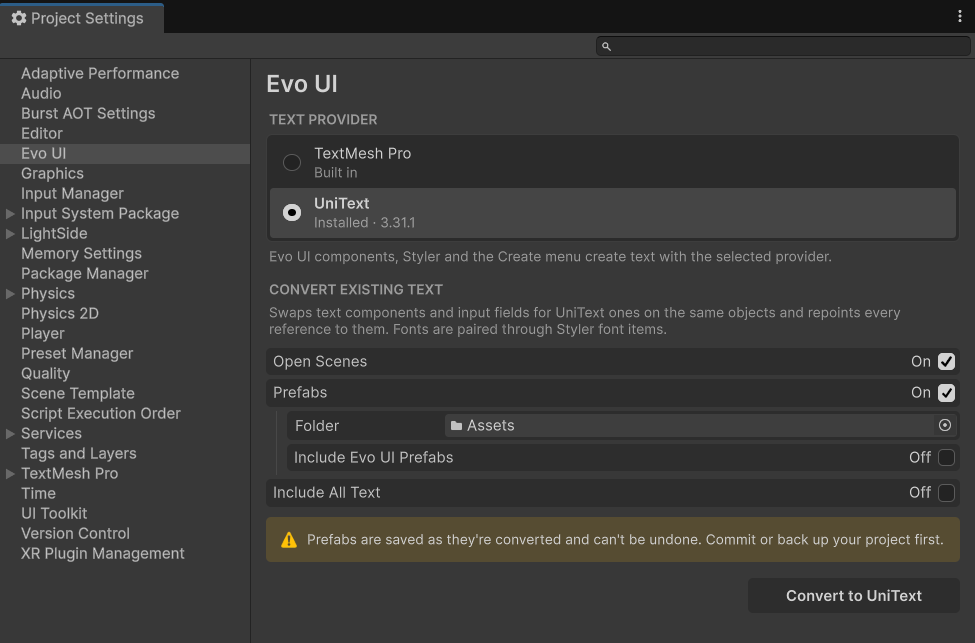
New elements from the Create menu use UniText from then on. See Text Providers for conversion options and scripting.
Supported Features
- Labels and value text on Evo UI components, including buttons, sliders, counters, timers, charts, and List View.
UniTextEditableinput fields on Input Field Enhancer, sliders, Color Picker, Quantity Selector, and Dropdown Input.- Styler fonts (a
UniTextFontStackorUniTextFont) and text styles: size and auto size, alignment, wrapping, spacing, margin, and font style. - Rolling digits on Counter and Timer. Use Uniform Digit Width uses the font's tabular figures.
- Evo Localization: converting text also switches Localized Objects to their UniText object type.
Notes
- Input Field Enhancer's Handle Shift Enter is TextMesh Pro only. Set the UniText field's Submit Key behavior to Enter instead.
- Text Style auto-size width (WD%) and Line adjustments are ignored. Overflow supports Ellipsis and Truncate.
- Rolling digits and tabular figures apply in Play Mode.
If UniText is missing from the Text Provider list, check that media.lightside.unitext is installed and that the project compiles without errors.