
UI Elements
Scrollbar
Smooth scrolling and automatic fading for Unity scrollbars
Overview
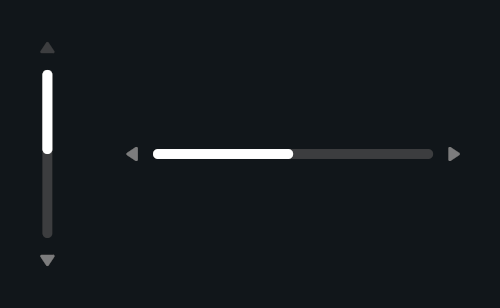
Evo UI Scrollbar extends Unity’s Scrollbar with animated scrolling and optional auto-hide behavior. It can be linked to an Evo UI Scroll Rect or a standard Unity ScrollRect.
Usage
Use the scrollbar supplied with an Evo UI scroll view, or assign one to your ScrollRect.
Set its direction and normal Unity scrollbar options.
Enable Auto Hide to fade after inactivity.
Tips
- Adjust scroll duration and curve separately from the hide delay, duration, and alpha.
- Auto-hide detects value movement using a threshold in v2.
Public API
Use Scrollbar in the Evo.UI namespace.
Fields
| Name | Type | Description |
|---|---|---|
smoothDuration | float | Default animated scroll duration. |
autoHide | bool | Enables fading after inactivity. |
hideAlpha | float | Alpha used while hidden. |
hideTimer | float | Idle delay before hiding. |
Methods
| Name | Parameters | Description |
|---|---|---|
ScrollTo() | float targetValue, bool clamp, float duration | Scrolls to a normalized value with explicit clamping and duration. |
ScrollTo() | float targetValue | Scrolls to a normalized value using the component settings. |
ScrollBy() | float amount | Offsets the current normalized value. |
ScrollBy() | float amount, bool clamp, float duration | Offsets the current normalized value. |
ScrollToMin() | None | Scrolls to the minimum. |
ScrollToMax() | None | Scrolls to the maximum. |
SetValueWithoutNotify() | float input | Sets the value without invoking listeners. |
Example
using UnityEngine;
using Evo.UI;

public class ScrollbarExample : MonoBehaviour
{
    [SerializeField] private Scrollbar target;

    private void Start()
    {
        target.autoHide = true;
        target.hideTimer = 1.5f;
        target.ScrollTo(0.5f, true, 0.25f);
    }
}