
Effects
Pixel Curtain
Reveal or hide a Graphic with a directional pixel transition
Overview
Pixel Curtain animates a Graphic as a field of cells that reveal or disappear along a direction. Use it for transitions, loading covers, and stylized UI reveals.
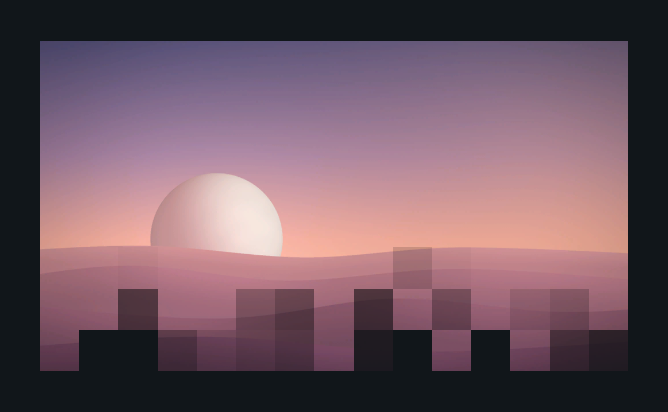
Usage
Add Pixel Curtain to the target Graphic.
Choose cell size, direction, and randomness.
Set the transition duration.
Call PlayIn(), PlayOut(), or PlayTransition() from a UI event.
Tips
- Adapt To Rect Size controls cell sizing.
- Fade Width changes the softness of the transition front.
- A full transition can hold between the in/out phases using Hold Duration.
- Cull Object controls visibility after hiding finishes.
- The optional Button reference can connect the effect to an interaction state.
Public API
Use PixelCurtain in the Evo.UI namespace.
Fields
| Name | Type | Description |
|---|---|---|
cellSize | float | Cell size for the effect. |
direction | Vector2 | Direction of the transition. |
randomness | float | Variation between cells. |
progress | float | Current shader transition amount. |
transitionDuration | float | Duration of a transition. |
autoFadeOut | bool | Automatically follows the reveal with a hide. |
holdDuration | float | Delay before automatic fade-out. |
Methods
| Name | Parameters | Description |
|---|---|---|
PlayTransition() | bool force = false | Plays the configured full transition. |
PlayIn() | bool force = false | Plays the reveal. |
PlayOut() | bool force = false | Plays the hide. |
UpdateMaterialProperties() | None | Uploads direct setting changes. |
Events
| Name | Type | Description |
|---|---|---|
onFadeInComplete | UnityEvent | Reveal completed. |
onFadeOutComplete | UnityEvent | Hide completed. |
Example
using UnityEngine;
using Evo.UI;

public class PixelCurtainExample : MonoBehaviour
{
    [SerializeField] private PixelCurtain target;

    private void Start()
    {
        target.transitionDuration = 0.6f;
        target.direction = Vector2.down;
        target.PlayIn();
    }
}